
Multiple LinkedIn accounts
Run more than one account: a clean identity for each, one stable IP for your own logins, and the same one paste to connect each one to BeReach.
Running a second or third account is common once outreach is working: a personal profile, a founder profile, one per team member. Each account works best with a clean and consistent identity of its own. This guide is the simple setup we recommend, and once it is done each account just works.
What BeReach handles, and what you handle
Once an account is connected, BeReach runs its outreach in the cloud for you. You never manage that part, and BeReach itself needs no VPN. The VPN in the steps below is only for your own manual logins to LinkedIn in a browser. Your job is to set each account up cleanly and keep those manual logins consistent.
The principle
Give every account its own clean identity and keep it stable:
- a dedicated email
- a clean network at sign-up
- one consistent IP whenever you log in by hand
Set that up once per account and you stop thinking about it.
Set up a new account
1. A dedicated email per account
Create a fresh email for each account, for example a new Gmail. Do not reuse an email that is already tied to another account. One email, one account.
2. Sign up on a mobile network, not wifi
When you create the account, turn wifi off and use your phone's mobile data (or tether your laptop to it), not a shared office wifi or a data-center connection.
3. Give the account one dedicated IP for your logins
For any time you open the account by hand in a browser, keep it on a single consistent IP with a VPN:
- Install Proton VPN's Chrome extension.
- Open its settings and turn on Split tunneling in Include mode.
- Add the sites you want protected:
linkedin.comandlicdn.com(LinkedIn's images and files), plus any other social accounts you run this way. Everything else keeps using your normal connection, so only these sites route through the VPN. - Pick one server location for this account and keep it. Whenever you log in, the account always comes from that same IP.
One location per account
Use a different Proton location for each account, and stay with it. A single stable IP per account means each account always comes from the same place.
4. One Chrome profile per account
Run each account in its own Chrome profile. One profile means one set of cookies, one login, one Proton location, so nothing bleeds between accounts. Switching profiles becomes how you switch accounts.
5. Connect the account to BeReach
With the account open in its Chrome profile, connect it the same way as your first one (see Connect your account):
- Open Cookie Lens on linkedin.com and copy the value named
li_at. Cookie Lens only reads your own cookies, so it never acts for you. - In BeReach, go to Settings, press Connect another account and paste it in. BeReach connects and takes over from there, in the cloud.
The account is signed in on another browser or device? Signed in on another device? Use a link lets you finish over there instead.
That is it. The VPN stays on by default for your social sites, so every manual visit is consistent, and BeReach handles the outreach without you.
Manage your accounts in BeReach
Inside BeReach, Settings holds every connected account, one row each:
- Set as default picks the account BeReach treats as your main identity.
- Seats depend on your plan, see the pricing page for the current count on each. Need more? Talk to us.
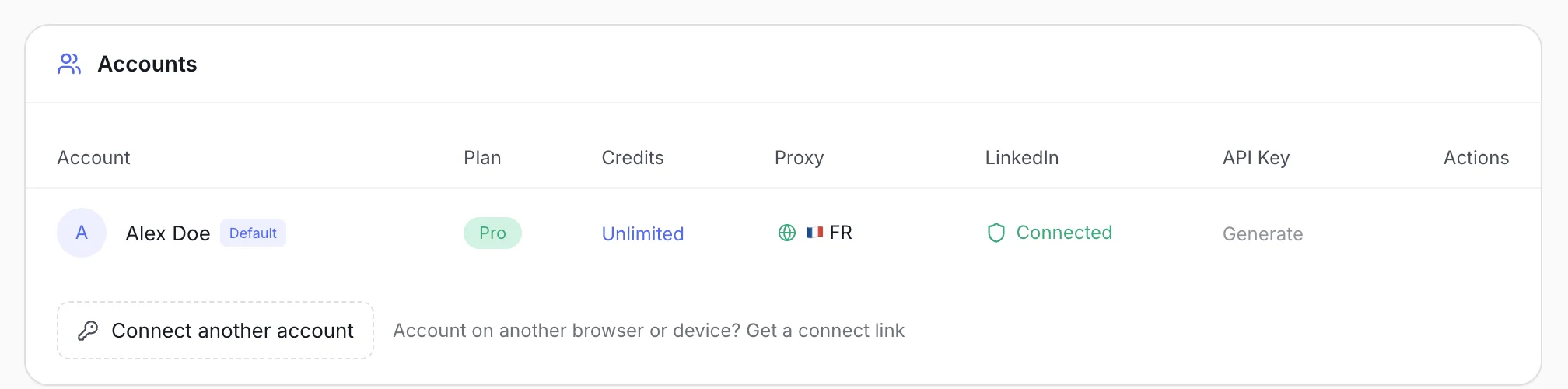
Limits are always per account and never pooled, so each account paces itself independently. See credits and limits for the daily and weekly caps.
Warm every account you add
Do not add more accounts than you can back with real, active profiles. A complete profile with a photo, a few connections, and some recent activity is what makes outreach land. A new account should ramp up gradually before it runs at full volume.