
Connect your account
Connect your LinkedIn account once, when you are ready to reach out: one paste. Plus more accounts and teammates.
One paste
You connect when you are ready to reach out: from Settings → Connect LinkedIn (Connect another account once you have one), or from the prompt Vera shows when a step needs it.
- 1
Install Cookie Lens
Cookie Lens is a small Chrome viewer that only reads your own cookies. It never acts for you.
- 2
Copy li_at
On linkedin.com, open Cookie Lens and copy the value named
li_at. It is the cookie that keeps you signed in to LinkedIn. BeReach uses it to act as you, only for what you ask: the invites and messages you send, the searches and lists you ask it to read through your account, and the checks that follow, such as who accepted and who replied. - 3
Close the LinkedIn tab, then paste
Close the tab you copied from (do not sign out of it), and paste the value into BeReach. Keep browsing LinkedIn in another window if you like.
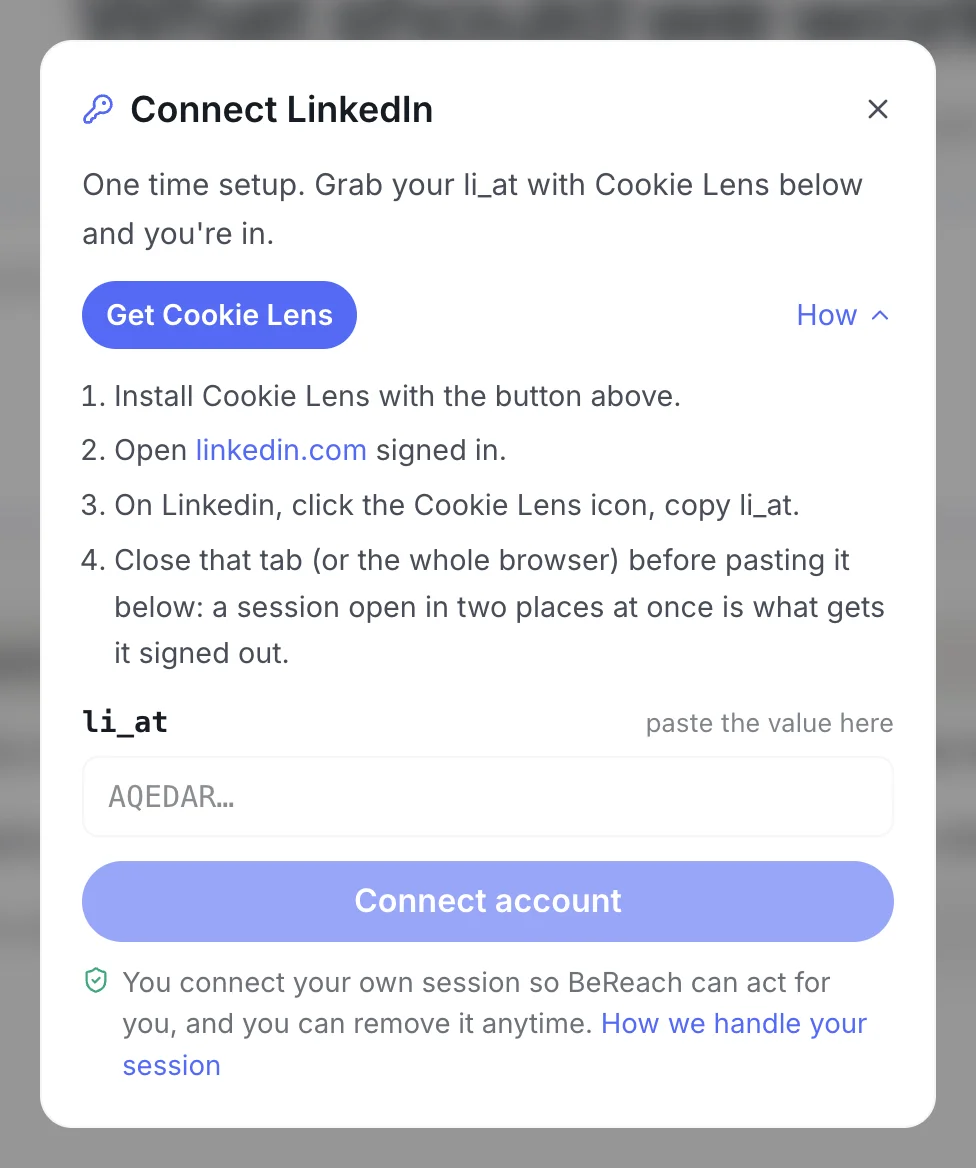
The account you want is on another device? In Settings, Signed in on another device? Use a link lets you finish there.
Signed out later? See Signed out of LinkedIn.
More than one account
Connect each one the same way. Each account sends at its own pace with its own limits, never pooled. Pick the main one with Set as default.
For your own manual logins, keep each account in its own Chrome profile, on one stable connection (a VPN with one fixed location per account works well). Give a new account a few weeks of real activity before full volume.
Teammates
Send a teammate the invite link to your workspace. Each teammate has their own chats and contacts; credits are shared by the whole workspace, and a workspace admin can switch to a teammate's account to see their work (once they have connected an account). Seats depend on your plan.