
Multiple LinkedIn accounts
Run more than one account safely: a clean identity for each, a dedicated IP for your own logins, and a simple way to connect each one to BeReach.
Running a second or third account is common once outreach is working: a personal profile, a founder profile, one per team member. The accounts that stay healthy all share one thing, a clean and consistent identity. This guide is the simple setup we recommend, and once it is done each account just works.
What BeReach handles, and what you handle
Once an account is connected, BeReach runs its outreach in the cloud from a stable, dedicated IP for that account. You never manage that part, and BeReach itself needs no VPN. The VPN in the steps below is only for your own manual logins to LinkedIn in a browser. Your job is to set each account up cleanly and keep those manual logins consistent.
The principle
An account gets flagged when its signals look inconsistent: a brand-new profile, a shared email, a login from a data center one day and a home network the next. So give every account its own clean identity and keep it stable:
- a dedicated email
- a clean network at sign-up
- one consistent IP whenever you log in by hand
Set that up once per account and you stop thinking about it.
Set up a new account the safe way
1. A dedicated email per account
Create a fresh email for each account, for example a new Gmail. Do not reuse an email that is already tied to another account. One email, one account.
2. Sign up on a mobile network, not wifi
When you create the account, turn wifi off and use your phone's mobile data (or tether your laptop to it). Mobile carriers hand out rotating IPs that read as ordinary human traffic, so sign-up goes through cleanly. Signing up from a shared office wifi or a data-center IP is what trips the early checks.
3. Give the account one dedicated IP for your logins
For any time you open the account by hand in a browser, keep it on a single consistent IP with a VPN:
- Install Proton VPN's Chrome extension.
- Open its settings and turn on Split tunneling in Include mode.
- Add the sites you want protected:
linkedin.comandlicdn.com, plus any other social accounts you run this way. Everything else keeps using your normal connection, so only these sites route through the VPN. - Pick one server location for this account and keep it. Whenever you log in, the account always comes from that same IP.
One location per account
Use a different Proton location for each account, and stay with it. A single stable IP per account reads as one real person in one place. Hopping between countries is the pattern to avoid.
4. One Chrome profile per account
Run each account in its own Chrome profile. One profile means one set of cookies, one login, one Proton location, so nothing bleeds between accounts. Switching profiles becomes how you switch accounts.
5. Connect the account to BeReach
With the account open in its Chrome profile:
- Install Cookie Lens, a small read-only cookie viewer, and copy the value named
li_at. It only reads a cookie, so it never sends messages or acts on your behalf. - In BeReach, add the account and paste it in. BeReach connects and takes over from there, running in the cloud on its own dedicated IP.
That is it. The VPN stays on by default for your social sites, so every manual visit is consistent, and BeReach handles the outreach without you.
Manage your accounts in BeReach
Inside BeReach, you manage each connected account separately:
- Label each account so you can tell them apart (for example "Personal" or "Company SDR").
- Set a default, the account BeReach treats as your main identity.
- Seats depend on your plan, see the pricing page for the current count on each. Need more? Talk to sales.
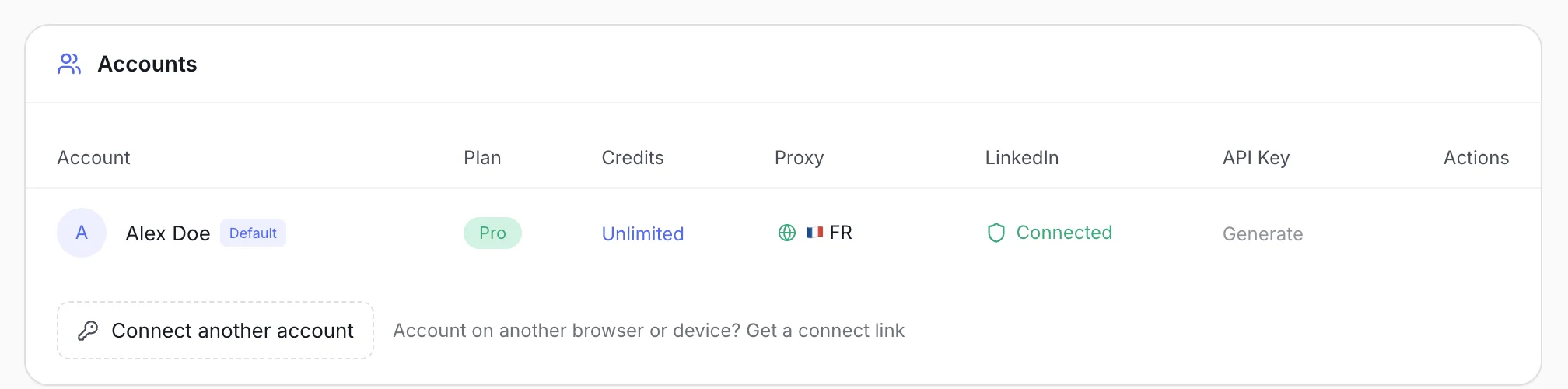
Adding one is the same paste as the first: Connect another account opens the same single-field dialog. If the account you want to add is signed in on a different browser or device, Get a connect link opens a one-time link you finish over there instead.
Limits are always per account and never pooled, so each account paces itself independently. See limits and account safety for the daily caps and the safeguards that run on every action.
Warm every account you add
Do not add more accounts than you can back with real, active profiles. A complete profile with a photo, a few connections, and some recent activity is what makes outreach land. A new account should ramp up gradually before it runs at full volume.